Introduction to Docker
What is a container?
What is it?
This is a package that contains code (could be written in many languages), a .env file. If this is a package, it is portable among developers
A docker Image is a image based on Linux
Where could i find it?
Docker repositories. Here you will be able to find many containers, also there are private repos. From package managers to complete operative systems.
What is a Image?
This is a packages that contains dependencies and code that will be shared
What is a container?
A container is a bunch of layers, each layer represents an image. Generally the first one is a Linux image, an Alpine Linux image
Why Alpine is the default Linux Image
This image is lighter than other Linux images
Does Docker virtualize?
Docker is a kind of virtualization. But What is the difference with a VM?
A complete system is conformed by Hardware -> Kernel -> Software or Applications.
- Hardware: Physical components of a Machine or computer.
- Kernel: Special software in charge of set communication between hardware and applications.
- Software or Applications: This is from the basic programs for the Operative system to the most common applications like browsers or games.
| Docker Container | Virtual Machines (VM) |
|---|---|
| This virtualizes only applications, and docker uses the kernel from the real machine's operative system | This virtualizes the applications and the kernel. Kernel is the reason why virtual machines are heavier than a container |
Commands
Common Commands
These are some commands used commonly in docker development. We will see all of them in this chapter
docker images: It returns a list of images that we have downloadeddocker pull <imageName>: This command pulls an image from docker hub and will be executed. If we just executedocker pull <image>without specifying the image, it will download the last version of the image (this version generally has the taglatest)docker pull <image>:<version>: This command is exactly the same that previous, but here we are setting the specified version
It is important to note when you download a image for first time, probably it takes some time to be downloaded, but when you already have one image (for example, node:latest) and you just download the same but in different version/tag, it will take less time... but why?
It is simple, you already have the layers needed to make useful that images, in the first time that you pull an image, it downloaded all needed layers.
docker image rm <name/id>: This will delete the image with the name or id set as parameter. Exampledocker image rm node,docker image rm node:16,docker image rm 9bf8324...docker create <image>ordocker create image <image>: Creates and pull the required images for your containerdocker start <id/name>: Runs the specified containerdocker ps: Shows all docker containers runningdocker ps -a: Shows all docker containersdocker stop <id/name>: Stops the specified containerdocker rm <id/name>: Removes the specified containerdocker create --name mi-contenedor <image>ornodeor whatever image
Create a container based on pulled images. Mongo DB example
Understanding the creation of containers
These are the steps to follow for creating a MongoDb container:
- Pull an image of db from docker hub
docker create mongo(for example) this will return an id- run
docker start <id returned>by the previous step docker psreturns a table with the next data:CONTAINER ID: A shorter form of the original ID, but it works sameIMAGE: The image that container is using (database, OS, node, php, etc)COMMAND: Command used by the container to be executed by its own selfCREATED: How long was createdSTATUS: If it is up or down and how much time it has been in that statusPORTS: Port that is used by the containerNAMES: Container name
docker stop <id>: Stops the container
To see all containers (inclusive all stopped): docker ps -a
Now. Why Can not I use this container that I created?, it is because the port is not mapping yet. but, What does this mean?
Port Mapping
Concept
This practice consists in make a reference of a port inside of the container using real port of the host. For example:
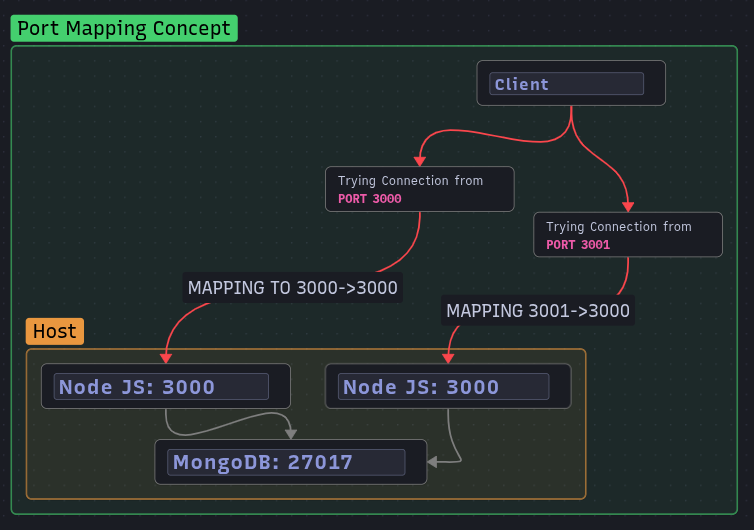
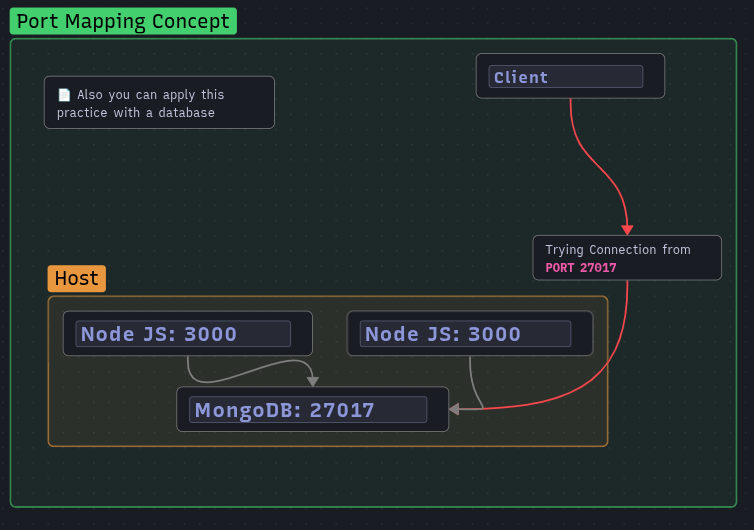
Also this could be applied for Databases:
Commands to put in practice
Docker create & Docker logs
docker create -p27017:27017 --name mongodb mongo:-pparameter is the meaning ofpublish, but because of put this in practical terms, we will think this meansport(Port Mapping), this parameter will be followed by the port reference (the real port of our machine) and then the port inside of the containerdocker start mongodbdocker ps
Here will see something like this:
CONTAINER ID   IMAGE     COMMAND                  CREATED         STATUS         PORTS                                             NAMES
594dfb346b4c   mongo     "docker-entrypoint.s…"   5 minutes ago   Up 2 seconds   0.0.0.0:27017->27017/tcp, [::]:27017->27017/tcp   mongodb
In the section of PORTS you will see that port 27017 is doing a reference of 27017 within container mongodb:
0.0.0.0:27017->27017/tcp
We can let docker choose the port mapping for us, but this is not recommended in most of the cases, except for little development environments. This could be done setting only the port inside of the container for whatever service that we ran with docker (for this example is mongo and its port 27017, for other services we recommend you check what port corresponds for each service).
docker create -p27017 --name mongodb mongo
Now, we can use the port to connect us with the Database. To see if our docker container has been executed successfully we can see the logs:
docker logs mongodb
But instantly it will exit us from the logs, to make that this command keeps us listening the logs, we will use
--followor-fparameter
Docker run
Also, we have short all of these steps with one command: docker run. This command is in charge of three key points:
- Pulling an unexistent image from docker hub (id it does not exist)
- Create the container
- Run the created container
docker run mongodb
This will start correctly and will show us the logs, but when we press ctrl+c, it will stop the logs, but also the container. To avoid this, we will execute the command with the -d parameter (from the meaning of detach from the logs).
docker run -d mongodb
We can set all parameters from docker create command for docker run:
docker run -p27017:27017 --name mongodb -d mongo
Some references used for this page are the next: